
ℹ️ Acubiz recommends using one of the following features through the Acubiz app:
- Use a PDF file as a receipt by sharing it to Acubiz
- Convert email content to a PDF receipt and share to Acubiz (iPhone only)
Acubiz Mail-In is a simple feature for digitizing receipts and attachments received via email. This feature ensures that your attached files are automatically transferred to Acubiz and linked to the correct expense reports.
ℹ️ Note: This guide assumes that you forward the email from the address registered on your Acubiz profile.
How to do it:
Receive the receipt You will receive an email with your attachment/receipt as a file. Select Forward on the email.
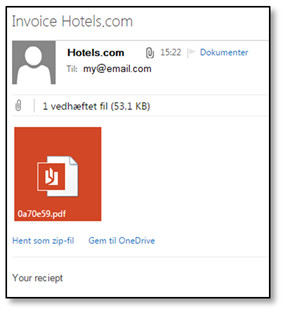
-
Send to Acubiz
Recipient: Enter your company’s unique Acubiz Mail-In email address in the To field.
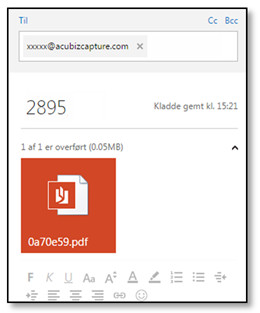
Processing in Acubiz The receipt has now been transferred. You can then complete and submit your expense report in Acubiz as usual.
Comments
0 comments
Please sign in to leave a comment.