
ℹ️ Acubiz recommends using our app for handling receipts.
- Take pictures of your receipts with the best results with the Acubiz app
- Make optimal receipt match on your credit card transactions
- Use a PDF file as a receipt by sharing it with Acubiz
- Convert email content to a PDF receipt and share to Acubiz (iPhone only)
The following guide presents the usage via the web browser.
Do you possess a file or document to be utilized as a receipt for an expense? This can be uploaded directly from your personal computer.
The following file formats are accepted:
- Documents: PDF files
- Images: JPG, PNG, GIF
If you have documents in different file formats, these should be converted to PDF format before uploading.
|
IMPORTANT: Acubiz does not support encrypted or password protected PDF files. |
It is possible to upload files and documents in 2 different scenarios, but the method to upload is the same
Upload Directly to an Expense:
If you have already received transactions that are missing the file you have on your PC, you can upload it directly to the transaction.
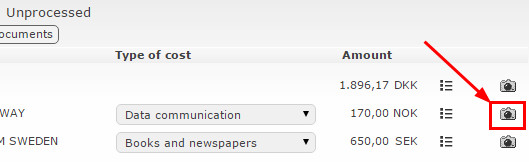
Click the camera icon next to the transaction that should have the file attached
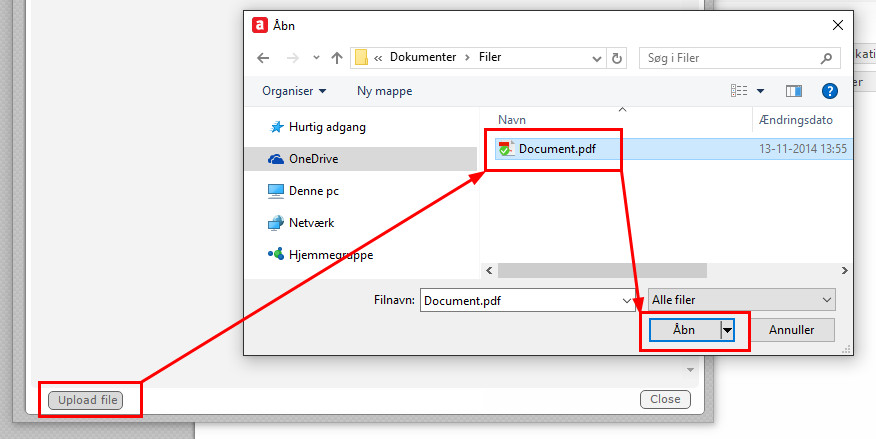
You then select the file from your PC
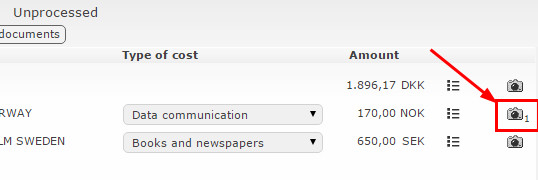
The file is now attached to the transaction - note the "1" next to the camera icon:
Upload for Later Use (Archive)
If you want to upload a document to a transaction you await, use the menuitem Receipts.

Then select a file from your computer:
And the file are saved for later use, so it can be attached to transactions by clicking the camera icon next to the transaction.
Select the document you want to attach:
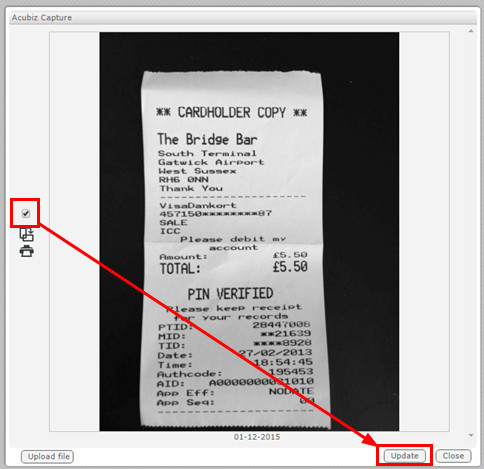
and the document are attached to the transaction.
Comments
0 comments
Please sign in to leave a comment.